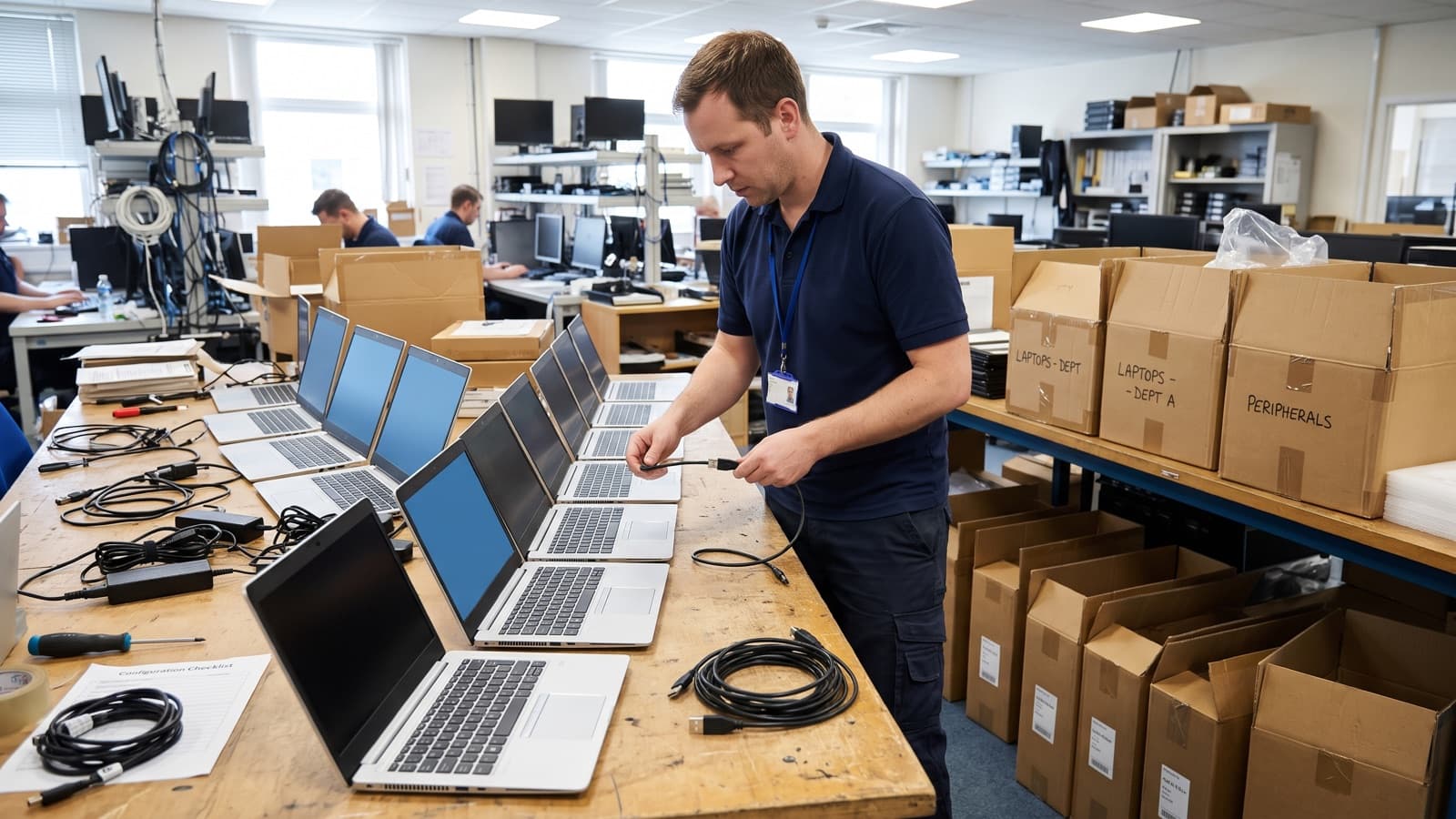
A laptop refresh looks simple from the outside: new devices arrive, old devices leave. In practice it is a project with many small parts. Data has to move, apps have to work, accessories have to match, and old devices have to be wiped and tracked until they are gone. Most refresh problems come from missing one of those parts, not from the laptops themselves.
This article explains what a hardware refresh is, what usually triggers one, why refresh cycles differ between organizations, and what a laptop deployment checklist should contain. It includes the points that matter for Windows 11. The details depend on your tools, your user groups and your security rules, so treat the lists as a base to adjust.
What is a hardware refresh, and what triggers one?
A hardware refresh is the planned replacement of end-user or infrastructure equipment with newer equipment, usually on a schedule or when a trigger is reached. For laptops it covers buying or leasing new devices, setting them up, moving users across and retiring the old ones.
Most organizations refresh because of one or more of these triggers.
- End of support: the operating system or the manufacturer stops providing updates or repairs. Microsoft states that once an operating system reaches end of support, customers no longer receive technical assistance, software updates or security fixes. Support for Windows 10 ended on October 14, 2025.
- Warranty expiry: repairs become slower or costlier, and spare parts are harder to find.
- Performance: devices that cannot run current apps, video calls or security tools at an acceptable speed.
- Security: devices that lack hardware features the security policy now requires, or that can no longer receive firmware updates.
- Requirements of a new operating system: devices that do not meet the minimum hardware needs of the version you want to run.
- Failure rates and battery wear that push support effort up for the service desk.
How often do organizations refresh laptops?
It depends on the organization, so there is no single correct interval. Some refresh on a fixed cycle, some refresh when a device fails or falls out of support, and many do a mix of both.
What shapes the choice is the cost of keeping old devices running against the cost of replacing them. Warranty terms, lease terms, the work people do on the device, security policy and budget cycles all push the number up or down. Heavier users such as designers and engineers often need newer hardware sooner than staff who use a browser and email.
A practical way to decide is to track a few facts about your own fleet: age, warranty status, repair history, operating system eligibility and user complaints. Then set a rule you can defend, such as "refresh at warranty end unless the device passes a health check". Review the rule each year, because hardware, software requirements and prices change.
How do you plan a laptop refresh?
Plan a refresh by working through inventory, user groups, data, provisioning, accessories and schedule in that order. Each step feeds the next, and gaps found late cost the most.
- Inventory: list every laptop with model, serial number, owner, location, age, warranty end date and operating system version. Match it to your asset records so nothing is missed. Our asset tagging glossary entry explains how to keep the records matched to the devices.
- User groups: sort people by role, such as general office, power users, executives, shared devices and remote staff. Each group may need a different model, app set and schedule.
- Application list: record the apps each group depends on, including line-of-business apps, plug-ins and drivers for specialist peripherals. Test the important ones on the new build before deployment.
- Data migration: decide what moves and how. Cloud-synced files may need no copy, while local files, browser data, mapped drives and local databases need a plan. Set a cutoff for what the user must save in advance.
- Provisioning method: choose how the new device is built. Options include imaging, or a cloud-based approach where the device ships with its factory Windows install and is configured on first sign-in. Microsoft describes Windows Autopilot as a set of technologies that set up and pre-configure new devices, using the OEM-optimized version of Windows already on the device instead of a custom image per model.
- Accessories: confirm docks, monitors, power supplies, cables, headsets and bags for each group, and check they work with the new model.
- Schedule: pick dates around month end, audits and holidays, set a pilot group first, then plan waves. Tell users what to expect and when.
What changes for a Windows 11 laptop deployment?
Windows 11 adds hardware requirements, so the first step is to check which existing devices qualify and which must be replaced. Microsoft lists minimum requirements that include a compatible 64-bit processor, 4 GB of memory, 64 GB of storage, UEFI firmware with Secure Boot capability and TPM 2.0.
Microsoft's planning guidance says the first step is to determine which of your current devices meet the hardware requirements, and it notes that Windows 11 can be deployed with the same tools and strategy used for Windows 10. It also says the arrival of Windows 11 is a good time to review hardware refresh plans and prioritize eligible devices.
For a refresh, this means new laptops should be bought to meet or exceed the stated requirements, and older devices that fail the check should be scheduled for replacement. Test your applications on Windows 11 before the first wave, and confirm your management tools are ready to enroll the new devices.
What are the deployment day steps?
On deployment day, follow the same ordered steps for every user so that no step is skipped under time pressure. The goal is a working laptop in the user's hands and a closed record for the old one.
- Confirm the user, the new device serial number and the old device serial number against the schedule.
- Ask the user to save work and sign out, and confirm that their data is backed up or synced.
- Power on the new laptop and run through first sign-in so provisioning applies policies, apps and encryption settings.
- Check that the device is enrolled in your management tool and reports as compliant.
- Migrate data and settings as planned, then ask the user to open their key apps, files, printers and shared drives.
- Connect accessories, test the dock and monitors, and check audio and camera for video calls.
- Walk the user through sign-in, multi-factor authentication and any changes that look different from the old device.
- Collect the old laptop, charger and accessories, and tag the old device for return.
- Update the asset record and have the user confirm that the handover is complete.
How should old laptops be returned and disposed of?
Treat old laptops as data-bearing assets until they are verified clean and recorded as gone. Track each one from collection through wipe, transport and final disposition.
NIST SP 800-88 Rev. 2, Guidelines for Media Sanitization, was published in September 2025 and supersedes Rev. 1. It describes media sanitization as a process that renders access to target data on the media infeasible for a given level of effort, and it helps organizations choose techniques based on how sensitive their information is. Use it as the reference when you write your own rules.
- Collect devices with a signed record: serial number, user, date and condition.
- Keep collected devices in a locked area until they are processed.
- Wipe or sanitize according to your data sensitivity rules. For managed Windows devices, Microsoft Intune offers a Wipe action that factory resets a device and removes personal and organizational data, apps and configurations.
- After a wipe, remove the device from your management tool, from the Autopilot registration if used, and from your identity directory, so stale records do not remain.
- Decide the end state for each device: redeploy, resell, donate, recycle or destroy. Drives that contain highly sensitive data may need a different treatment than the rest.
- Obtain a certificate or record from any disposal vendor, with serial numbers and the method used.
- Record the final status against each asset.
What records belong in refresh closeout?
Closeout records show that every old device is accounted for and every new device is assigned, configured and documented. They are the proof you need for audits, insurance and warranty claims.
Our closeout report glossary entry describes the general idea. For a refresh, the closeout set should include the items below.
- Final asset list: new devices with serial number, user, location, assigned date and warranty end date.
- Old device list: each serial number with its wipe record and its final status.
- Exceptions: users who were not available, devices that failed to enroll and items still open.
- Issues log: problems found during deployment and how each was fixed.
- Handover documents: the build or provisioning profile used, the app list and the support process for users.
- A short review of what to change before the next wave or the next refresh.
How does Deploris help with hardware refreshes?
Deploris supports refreshes with on-site and remote technicians who can unbox, stage, deploy, collect and document devices to your written plan.
That can include staging laptops before deployment day, doing the desk-side swaps, tagging and tracking old devices, coordinating secure disposal and delivering the closeout records. The scope and schedule are agreed in writing before work starts.
Key takeaways
- A hardware refresh is planned replacement of devices, triggered by end of support, warranty, performance or security needs.
- Refresh cycle length depends on your fleet, budget and risk, so set a rule from your own data and review it yearly.
- Plan in order: inventory, user groups, apps, data migration, provisioning, accessories and schedule.
- For Windows 11, check device eligibility first and test your apps before the first wave.
- Track old devices until they are wiped and recorded as gone, then keep closeout records for audit.
Sources and further reading
- Microsoft Learn, Windows 11 requirements (opens in a new tab)
- Microsoft Learn, Plan for Windows 11 (opens in a new tab)
- Microsoft Learn, Overview of Windows Autopilot (opens in a new tab)
- Microsoft Learn, Lifecycle FAQ for Windows (opens in a new tab)
- Microsoft Learn, Wipe devices with Microsoft Intune (opens in a new tab)
- NIST, SP 800-88 Rev. 2, Guidelines for Media Sanitization (opens in a new tab)